Use the audience and check who else relies on it
Sign in to save your progressFor this launch, open Campaigns → Newsletter → New Newsletter and select Field hand grinder · accessory offer in Audience. Check the audience on the actual newsletter and preview the link to the matching accessory. The count can change before sending.
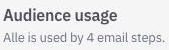
Later, you want an automated care email after a purchase of “Field hand grinder”. First open Show audience usage on the audience card. The example below is linked to four email steps. Open the panel to see which newsletters or custom automations those steps belong to.
Decide whether the new email needs the same people. For general product care, owners who already bought the accessory still need the advice. Create a separate automation audience for owners of “Field hand grinder” and set its timing in the custom flow. If the rules really are identical and you want to reuse one audience, choose Both when creating it and select it in the newsletter and custom automation.
In your test shop or on paper, name the audience you would use for each email and explain where the buyer of “Field travel case” belongs. Newsletter setup · Custom Flows
Worked example
A guide to using “Field hand grinder” helps every owner, including those who bought “Field travel case”. Give the guide its own audience. Someone who owns both should appear in the guide list and stay outside the accessory offer.
Compare shop examples
- Coffee & equipment · North Mill Coffee
- Pet food & equipment · Paw & Pine
- Wine & cellarware · Terrace Cellars
- Clothing & care · Linden Knitwear
- Electronics & supplies · Pixel & Paper
Coffee & equipment · North Mill Coffee
For this launch, open Campaigns → Newsletter → New Newsletter and select Field hand grinder · accessory offer in Audience. Check the audience on the actual newsletter and preview the link to the matching accessory. The count can change before sending.
Later, you want an automated care email after a purchase of “Field hand grinder”. First open Show audience usage on the audience card. The example below is linked to four email steps. Open the panel to see which newsletters or custom automations those steps belong to.
Decide whether the new email needs the same people. For general product care, owners who already bought the accessory still need the advice. Create a separate automation audience for owners of “Field hand grinder” and set its timing in the custom flow. If the rules really are identical and you want to reuse one audience, choose Both when creating it and select it in the newsletter and custom automation.
In your test shop or on paper, name the audience you would use for each email and explain where the buyer of “Field travel case” belongs. Newsletter setup · Custom Flows
A guide to using “Field hand grinder” helps every owner, including those who bought “Field travel case”. Give the guide its own audience. Someone who owns both should appear in the guide list and stay outside the accessory offer.
Pet food & equipment · Paw & Pine
For this launch, open Campaigns → Newsletter → New Newsletter and select Trail walking harness · accessory offer in Audience. Check the audience on the actual newsletter and preview the link to the matching accessory. The count can change before sending.
Later, you want an automated care email after a purchase of “Trail walking harness”. First open Show audience usage on the audience card. The example below is linked to four email steps. Open the panel to see which newsletters or custom automations those steps belong to.
Decide whether the new email needs the same people. For general product care, owners who already bought the accessory still need the advice. Create a separate automation audience for owners of “Trail walking harness” and set its timing in the custom flow. If the rules really are identical and you want to reuse one audience, choose Both when creating it and select it in the newsletter and custom automation.
In your test shop or on paper, name the audience you would use for each email and explain where the buyer of “Trail clip-on pouch” belongs. Newsletter setup · Custom Flows
A guide to using “Trail walking harness” helps every owner, including those who bought “Trail clip-on pouch”. Give the guide its own audience. Someone who owns both should appear in the guide list and stay outside the accessory offer.
Wine & cellarware · Terrace Cellars
For this launch, open Campaigns → Newsletter → New Newsletter and select Arc glass decanter · accessory offer in Audience. Check the audience on the actual newsletter and preview the link to the matching accessory. The count can change before sending.
Later, you want an automated care email after a purchase of “Arc glass decanter”. First open Show audience usage on the audience card. The example below is linked to four email steps. Open the panel to see which newsletters or custom automations those steps belong to.
Decide whether the new email needs the same people. For general product care, owners who already bought the accessory still need the advice. Create a separate automation audience for owners of “Arc glass decanter” and set its timing in the custom flow. If the rules really are identical and you want to reuse one audience, choose Both when creating it and select it in the newsletter and custom automation.
In your test shop or on paper, name the audience you would use for each email and explain where the buyer of “Arc drying stand” belongs. Newsletter setup · Custom Flows
A guide to using “Arc glass decanter” helps every owner, including those who bought “Arc drying stand”. Give the guide its own audience. Someone who owns both should appear in the guide list and stay outside the accessory offer.
Clothing & care · Linden Knitwear
For this launch, open Campaigns → Newsletter → New Newsletter and select Alder merino pullover · accessory offer in Audience. Check the audience on the actual newsletter and preview the link to the matching accessory. The count can change before sending.
Later, you want an automated care email after a purchase of “Alder merino pullover”. First open Show audience usage on the audience card. The example below is linked to four email steps. Open the panel to see which newsletters or custom automations those steps belong to.
Decide whether the new email needs the same people. For general product care, owners who already bought the accessory still need the advice. Create a separate automation audience for owners of “Alder merino pullover” and set its timing in the custom flow. If the rules really are identical and you want to reuse one audience, choose Both when creating it and select it in the newsletter and custom automation.
In your test shop or on paper, name the audience you would use for each email and explain where the buyer of “Alder care kit” belongs. Newsletter setup · Custom Flows
A guide to using “Alder merino pullover” helps every owner, including those who bought “Alder care kit”. Give the guide its own audience. Someone who owns both should appear in the guide list and stay outside the accessory offer.
Electronics & supplies · Pixel & Paper
For this launch, open Campaigns → Newsletter → New Newsletter and select Pocket P2 photo printer · accessory offer in Audience. Check the audience on the actual newsletter and preview the link to the matching accessory. The count can change before sending.
Later, you want an automated care email after a purchase of “Pocket P2 photo printer”. First open Show audience usage on the audience card. The example below is linked to four email steps. Open the panel to see which newsletters or custom automations those steps belong to.
Decide whether the new email needs the same people. For general product care, owners who already bought the accessory still need the advice. Create a separate automation audience for owners of “Pocket P2 photo printer” and set its timing in the custom flow. If the rules really are identical and you want to reuse one audience, choose Both when creating it and select it in the newsletter and custom automation.
In your test shop or on paper, name the audience you would use for each email and explain where the buyer of “Pocket P2 carrying case” belongs. Newsletter setup · Custom Flows
A guide to using “Pocket P2 photo printer” helps every owner, including those who bought “Pocket P2 carrying case”. Give the guide its own audience. Someone who owns both should appear in the guide list and stay outside the accessory offer.