Trace one message from your shop
Sign in to save your progressWho manages your sending domain? SPF authorizes sending servers. DKIM lets receivers verify a message signature. DMARC checks whether a domain authenticated by SPF or DKIM aligns with the visible From address. With your provider, check domain authentication and the bulk-sending requirements for marketing mail, including one-click unsubscribe. With MailBeez.Email, Domain checks shows which DNS records to publish.
Follow one test email
- Send a test to a mailbox you control. Check the visible sender and reply once to see where the reply arrives.
- With MailBeez.Email, open System → Sending & status → Email delivery → Sends. Find the test send, open its details and read Updates. Under Bounces, look for the reason the receiving server reported. For Shop or SMTP, trace the message in the logs for your route.
- If a warning shows a rising bounce rate, inspect the affected sends. A permanent failure such as an unknown address calls for a different response from a temporary delay at one mailbox provider.
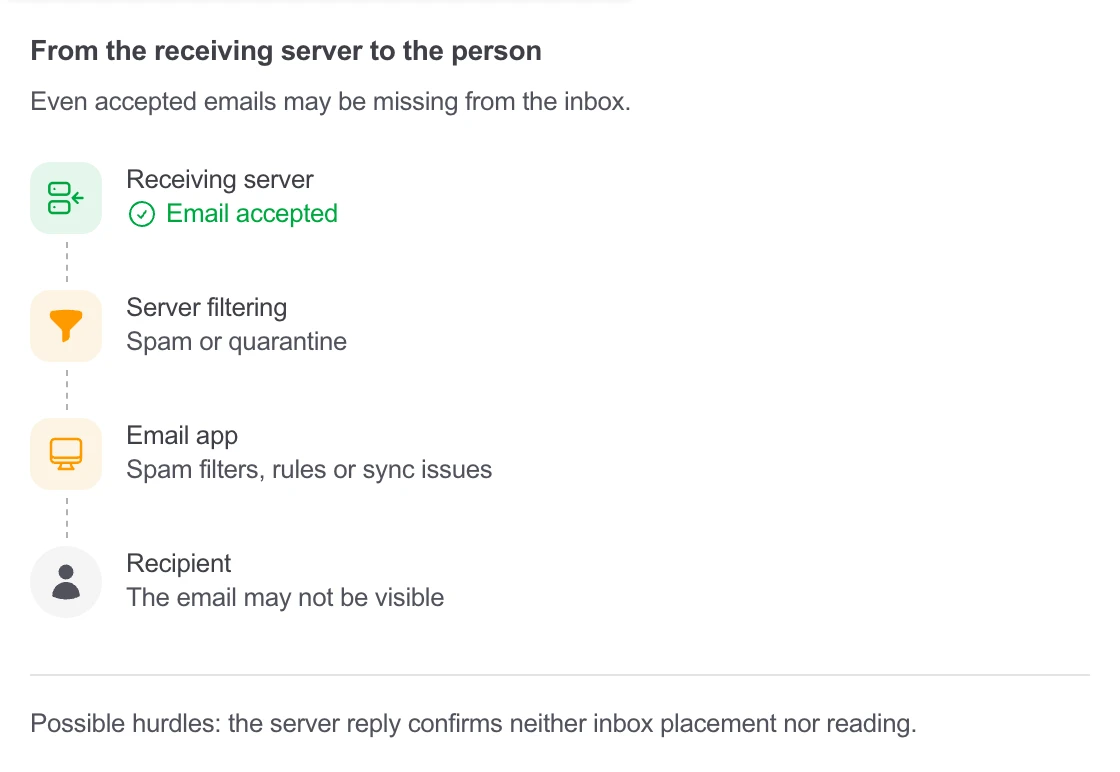
On paper, use this event sequence: the shop sent the message at 09:02 and the receiving server reported Accepted at 09:03. Decide what you could confidently tell a customer.
Brief a colleague
Show the two template previews, name the offer template if you use one, and explain your sending route, hourly allowance and where you would trace a delivery.
Worked example
The sending provider reports acceptance at 14:06. You can record that event and its time in Sending & Status. To check where the recipient saw the test email, open the receiving mailbox and inspect the folder.