Check the topic and confirmation before importing
Sign in to save your progressOpen the four-row practice CSV. It contains fictitious addresses for an isolated test shop. All four originally chose “First brews”. In the original signup records, Ada confirmed her subscription and Ben never confirmed. Kim and Jo already have shop accounts.
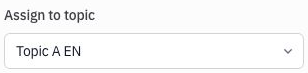
Open Contacts → Prospects → Import and choose the CSV file. Under Assign to topic, replace No topic assignment with First brews. The screenshot shows the same field with a sample topic selected.
Turn Treat as confirmed off for this file. A 1 in confirmed sets a prospect to confirmed and a 0 sets them to unconfirmed. A blank has two meanings: a new prospect takes the switch setting, while an existing prospect keeps their recorded confirmation. A matched shop customer keeps their newsletter status.

Import processes the file immediately. Before clicking, check the selected topic and compare the confirmation values with your source records. For the paper exercise, go straight to the next step.
Compare shop examples
- Coffee & equipment · North Mill Coffee
- Pet food & equipment · Paw & Pine
- Wine & cellarware · Terrace Cellars
- Clothing & care · Linden Knitwear
- Electronics & supplies · Pixel & Paper
Coffee & equipment · North Mill Coffee
Open the four-row practice CSV. It contains fictitious addresses for an isolated test shop. All four originally chose “First brews”. In the original signup records, Ada confirmed her subscription and Ben never confirmed. Kim and Jo already have shop accounts.
Open Contacts → Prospects → Import and choose the CSV file. Under Assign to topic, replace No topic assignment with First brews. The screenshot shows the same field with a sample topic selected.
Pet food & equipment · Paw & Pine
Open the four-row practice CSV. It contains fictitious addresses for an isolated test shop. All four originally chose “Walking tips”. In the original signup records, Ada confirmed her subscription and Ben never confirmed. Kim and Jo already have shop accounts.
Open Contacts → Prospects → Import and choose the CSV file. Under Assign to topic, replace No topic assignment with Walking tips. The screenshot shows the same field with a sample topic selected.
Wine & cellarware · Terrace Cellars
Open the four-row practice CSV. It contains fictitious addresses for an isolated test shop. All four originally chose “Serving wine”. In the original signup records, Ada confirmed her subscription and Ben never confirmed. Kim and Jo already have shop accounts.
Open Contacts → Prospects → Import and choose the CSV file. Under Assign to topic, replace No topic assignment with Serving wine. The screenshot shows the same field with a sample topic selected.
Clothing & care · Linden Knitwear
Open the four-row practice CSV. It contains fictitious addresses for an isolated test shop. All four originally chose “Knitwear care”. In the original signup records, Ada confirmed her subscription and Ben never confirmed. Kim and Jo already have shop accounts.
Open Contacts → Prospects → Import and choose the CSV file. Under Assign to topic, replace No topic assignment with Knitwear care. The screenshot shows the same field with a sample topic selected.
Electronics & supplies · Pixel & Paper
Open the four-row practice CSV. It contains fictitious addresses for an isolated test shop. All four originally chose “Printing tips”. In the original signup records, Ada confirmed her subscription and Ben never confirmed. Kim and Jo already have shop accounts.
Open Contacts → Prospects → Import and choose the CSV file. Under Assign to topic, replace No topic assignment with Printing tips. The screenshot shows the same field with a sample topic selected.